


Ever sent a text to a friend and noticed that dreaded green bubble instead of the familiar blue? It feels like a betrayal, doesn’t it? You might be wondering if your iPhone’s gone rogue or if your buddy’s secretly switched teams. Don’t panic! The green text isn’t a sign of an impending tech apocalypse; it’s just your iPhone’s way of saying, “Hey, we’re using different messaging systems here!”
Understanding Text Colors in iMessage
Text colors in iMessage can significantly affect user experience. Green text bubbles indicate messages sent via SMS or MMS. This occurs when a recipient uses a non-Apple device or has iMessage disabled on their iPhone. Blue text bubbles represent messages sent through iMessage, Apple’s proprietary messaging service.
Messages display in blue when both sender and recipient have iMessage enabled. As security and features differ between SMS and iMessage, understanding these colors helps clarify communication methods. For users concerned about privacy, iMessage encrypts conversations end to end, while SMS does not offer such protection.
Differences in these systems can lead to confusion. A sender might experience mixed colors when chatting with various contacts. One might see blue messages when texting an iPhone user, yet green appears when that user transitions to a different device. Device compatibility significantly affects message appearance.
In some cases, network issues can cause iMessage to default to SMS. Users may notice this when Wi-Fi or cellular data connections fail. Data settings play a crucial role in message delivery; ensuring mobile data is enabled facilitates iMessage functionality.
Lastly, knowing when to troubleshoot communication can aid in resolving issues. Users experiencing persistent green texts should verify their own settings first. Examining the recipient’s device may also prove helpful. Understanding text colors enhances the messaging experience on iPhones.
Reasons for Green Texts in iMessage
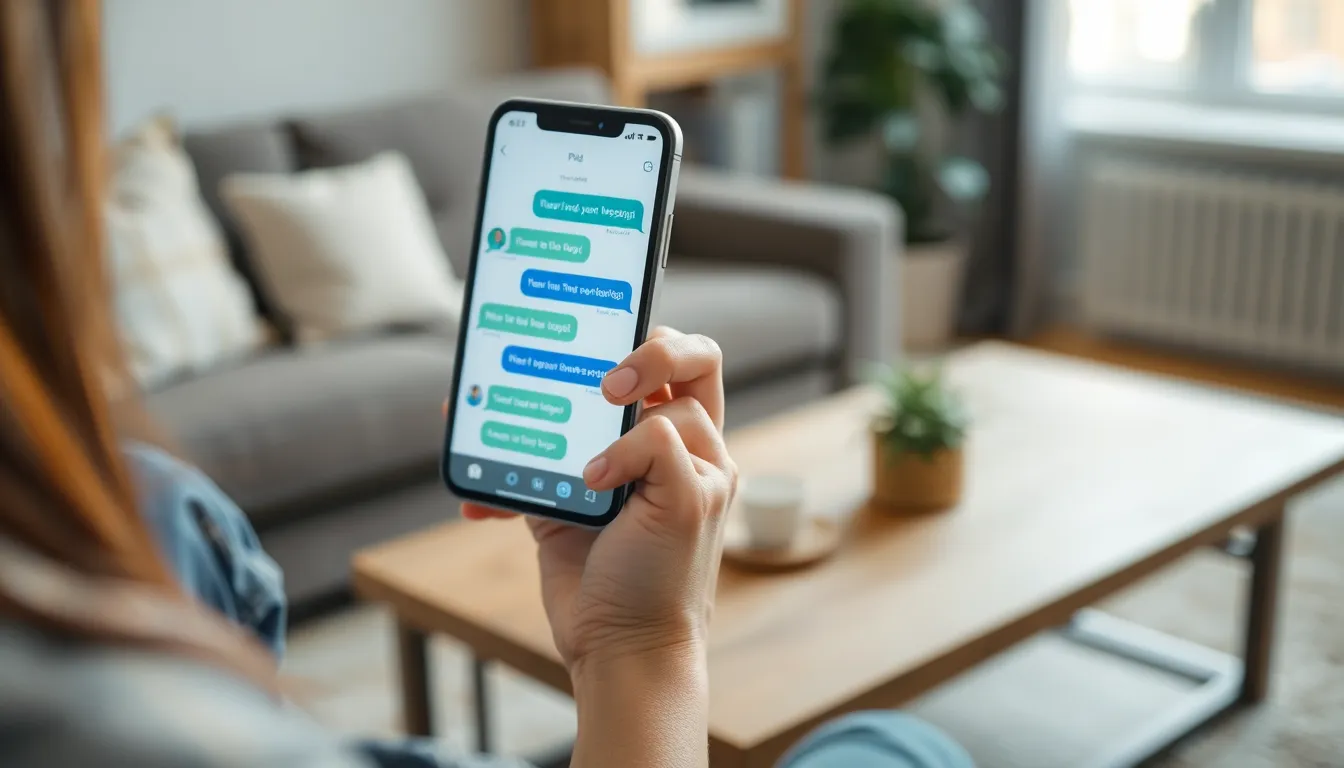
Green text bubbles can arise from various factors. Understanding these reasons clarifies the messaging experience on iPhones.
Non-iMessage Users
Non-iMessage users generate green texts. When a recipient does not use an Apple device, messages revert to SMS or MMS. Friends with Android phones or other non-Apple devices trigger this scenario. Green bubbles show that the sender and recipient are not both using iMessage, which alters the functionalities involved in messaging. Message features, such as read receipts and typing indicators, become unavailable. Recognizing that communication relies on compatible devices helps eliminate confusion.
Network Issues
Network issues also lead to green text messages. If there’s a poor cellular signal or no Wi-Fi connection, iMessage may fail to send. Under these circumstances, a message defaults to SMS, resulting in a green bubble. Users sometimes encounter this when switching locations or during high traffic times. Verifying network settings can identify any problems affecting iMessage functionality. Ensuring proper connectivity allows for seamless messaging.
Device Compatibility
Device compatibility significantly impacts text colors. Using outdated iOS versions or unsupported models may interfere with iMessage capabilities. If a friend doesn’t update their device, they might send green texts instead of blue ones. Users should encourage others to keep their devices updated to maintain compatibility. Checking device settings ensures that both parties can access the full range of iMessage features for an optimal experience.
Comparing iMessage and SMS
Understanding the distinctions between iMessage and SMS clarifies why text colors vary. A green bubble indicates SMS or MMS messaging, while a blue bubble shows the use of iMessage.
Features of iMessage
iMessage offers several advantages that enhance user communication. Messages sent through iMessage are encrypted end-to-end, ensuring privacy. Users can enjoy read receipts and typing indicators, which provide real-time feedback on message status. Integration with other Apple services like FaceTime allows for seamless transitions between messaging and video calls. Customizable features such as stickers, Apple Pay, and the ability to send larger files improve the overall experience. Group chats in iMessage also support additional functionalities, enhancing collaboration among users.
Limitations of SMS
SMS messaging has several limitations compared to iMessage. Encryption is absent, making SMS less secure. Features like read receipts and typing indicators do not exist in standard SMS, reducing interactivity. Limitations on file size restrict multimedia content sharing, with most carriers capping messages at 160 characters. Furthermore, group messaging functions differ, often complicating conversations involving multiple participants. Compatibility with non-Apple devices is a factor, but functionality remains basic, resulting in a less engaging experience.
Troubleshooting Green Texts
Green text bubbles on iPhones often prompt questions about messaging settings and functionality. A few simple checks can clarify why messages appear in this color.
Check Settings
Ensure iMessage is enabled on the device. Navigate to Settings, then Messages, and confirm that the iMessage toggle is switched on. Next, verify if Send as SMS is enabled. This setting allows messages to default to SMS when iMessage isn’t available. Additionally, check the recipient’s settings. If the person has turned off iMessage, or uses a non-Apple device, green bubbles will appear. Reviewing Apple ID settings also helps. Make sure the number or email linked to iMessage is correct.
Restarting Devices
Restarting both iPhones may resolve messaging issues. Power off each device and then turn them back on. A simple restart often clears temporary glitches affecting connectivity. After restarting, attempt sending a message again. If the issue persists, resetting network settings can improve connection stability. To do this, go to Settings, then General, tap Reset, and choose Reset Network Settings. This action clears any problematic configurations, restoring default settings for cellular and Wi-Fi connections.
Receiving a green text bubble on an iPhone can be puzzling but it’s essential to remember that it merely reflects the messaging system in use. It doesn’t indicate any issues with the friendship or communication. Understanding the distinction between SMS and iMessage can alleviate concerns and enhance messaging experiences.
By being aware of potential factors like network issues or device compatibility, users can take proactive steps to address any confusion. Staying informed about these differences empowers users to troubleshoot effectively and maintain seamless communication with friends and family. Embracing the nuances of text colors can lead to a more enjoyable and informed messaging journey.