


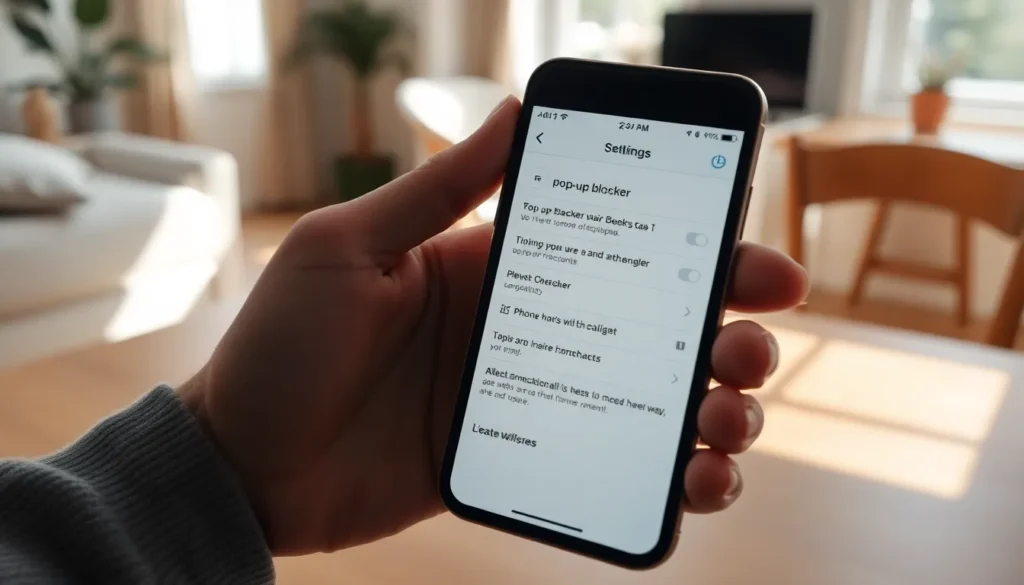
Pop-up blockers on iPhones can be a blessing and a curse. Sure, they keep those annoying ads at bay, but sometimes they also block the content you actually want to see. Imagine trying to access a special offer or a crucial login page only to be met with a wall of silence. Frustrating, right?
Understanding Pop-Up Blockers
Pop-up blockers on iPhones serve a dual purpose. They protect users from unwanted advertisements and intrusive windows. Annoying ads can disrupt browsing, creating a smoother experience when pop-ups are blocked. Users, however, sometimes miss out on valuable content. Important login pages or special promotional offers may get hindered by these blockers. Frustration can arise when essential information remains hidden due to aggressive blocking.
Blocking settings may vary based on the browser used. Safari, the default browser, includes a built-in pop-up blocker. This feature functions to enhance user privacy and maintain focus while browsing. Another browser, Chrome, provides its own set of customization options. Users often change pop-up blocker settings according to individual preferences or website requirements.
Turning off a pop-up blocker allows access to content that the browser may mistakenly classify as spam. Disabling this feature can be beneficial when visiting trusted sites requesting login or payment details. Technology continues to evolve, making it increasingly necessary for users to adapt their settings.
Understanding the balance between annoyance and benefit is crucial. Users should remain aware of the implications of enabling or disabling pop-up blockers. Making informed decisions can lead to a more enjoyable browsing experience. By recognizing these factors, individuals can find the right level of control over their online interactions.
How to Access Settings on Your iPhone
Accessing the settings on an iPhone is straightforward. Users can modify options like the pop-up blocker through the device settings and browser settings.
Navigating to Safari Settings
To navigate to Safari settings, users should first open the Settings app on their iPhone. Scrolling down the menu reveals various options; tapping on Safari opens the browser settings. Within this section, users find numerous configurations for their browsing experience. The settings include options for Clear History and Website Data, Privacy and Security settings, and the pop-up blocker feature. Adjustments in this area can enhance his or her browsing capabilities.
Finding Content Blockers
Finding content blockers also involves navigating through the settings. In the Safari settings menu, users should look for the Content Blockers option. This section displays any active content blockers installed on the device. Users can toggle these blockers on or off according to their preferences. Considering trusted websites, users may choose to disable specific blockers to ensure they receive all relevant content. Adjusting settings here streamlines the process for accessing desired information.
Steps to Turn Off Pop-Up Blocker
Turning off the pop-up blocker on an iPhone requires a few simple steps, primarily within the Safari browser settings. Users find this essential for accessing certain content.
Disabling the Pop-Up Blocker in Safari
To disable the pop-up blocker in Safari, users start by opening the Settings app on their iPhone. Next, they scroll down to find and select Safari. In the Safari settings menu, users locate the ‘Block Pop-ups’ option. Toggling this feature off allows pop-ups to appear on websites, which can be useful for accessing needed information. After making this change, users can return to their web browsing experience.
Verifying Changes
After disabling the pop-up blocker, verifying the changes ensures they’re effective. Users should return to Safari and visit a website known for pop-ups, such as an online form or login page. If the desired pop-ups display, the settings adjustment worked correctly. Testing multiple sites can confirm the change, providing assurance that important content is accessible without obstruction. User satisfaction improves when trusted sites function as intended.
Troubleshooting Common Issues
Users might encounter various issues when trying to disable pop-up blockers on their iPhones. Difficulty accessing specific sites can arise, requiring attention to the settings. Some websites may still appear blocked even after adjusting configurations, indicating the need for further troubleshooting.
Navigating the Settings app is essential for resolving these issues. Users should ensure they selected Safari when attempting to modify pop-up blocker settings. Check if the ‘Block Pop-ups’ toggle has indeed switched off; an unchecked setting might lead to continued restrictions.
In Chrome, users may face their own set of challenges. Confirming the browser’s pop-up settings can often be overlooked. Users should access Chrome settings directly, find the pop-up options, and disable them as needed for optimum website functionality.
Inadequate troubleshooting may leave users frustrated with unexpected results. Visiting different websites can help clarify whether the problem lies within the browser or the specific site. Testing formats such as trusted company links can confirm if the change in settings has taken effect.
Clearing the browser cache sometimes resolves persistent issues. Users can navigate to settings and find options to clear browsing data directly. Following up with a restart of the iPhone might also refresh settings that don’t seem to apply.
If problems continue, utilizing a support resource like Apple’s official site may offer additional guidance. Contacting customer support can provide specific solutions relevant to individual circumstances. Addressing these common issues ensures a smoother browsing experience while navigating the complexities of pop-up blockers on an iPhone.
Adjusting pop-up blocker settings on an iPhone can significantly enhance the browsing experience. By toggling off the pop-up blocker in Safari or Chrome users can gain access to valuable content that might otherwise be hidden. This flexibility allows individuals to navigate trusted websites with ease while still enjoying the benefits of a smoother interface.
It’s essential to stay aware of the balance between protecting oneself from unwanted ads and accessing important information. With the right adjustments users can enjoy a more tailored experience that meets their specific needs. For those encountering issues it’s advisable to troubleshoot settings or seek further assistance to ensure a seamless browsing journey.